
Notion and Obsidian for engineering
How I use Notion and Obsidian to engineering productivity
Introduction
If you’ve read any of my other posts or checked my bio, you probably already know I work in electronics engineering — both hardware and firmware development. One thing I spent a long time figuring out was how to organize my knowledge and projects in a way that made them easy to reference and, just as importantly, easy to pick back up. Whether that’s future me returning to something after months away, or a colleague trying to understand what’s going on.
Today’s post is a bit different from my usual content — less technical, but I think equally useful: how I use Notion and Obsidian for documentation, learning, and project tracking.
Why Notion and Obsidian?
Simple answer: for me, they’re the best tools for their respective jobs. Some people use Obsidian for everything, but I find it cleaner to keep their roles separate. Part of that comes down to how each one stores data — more on that below.
Notion
Notion makes it easy to store information, track tasks, and manage statuses. Its cloud-based nature means I can access and edit everything from anywhere — office, home, wherever — which makes it ideal for keeping tabs on work projects across different environments.
A quick clarification: I don’t use Notion as a knowledge base. I use it more like a project logbook — a place to track what’s happening, what needs to happen next, and what decisions were made along the way. The goal is to make it easy to jump back into any project without having to reconstruct context from scratch.
Starting from the dashboard, here’s how everything is organized:
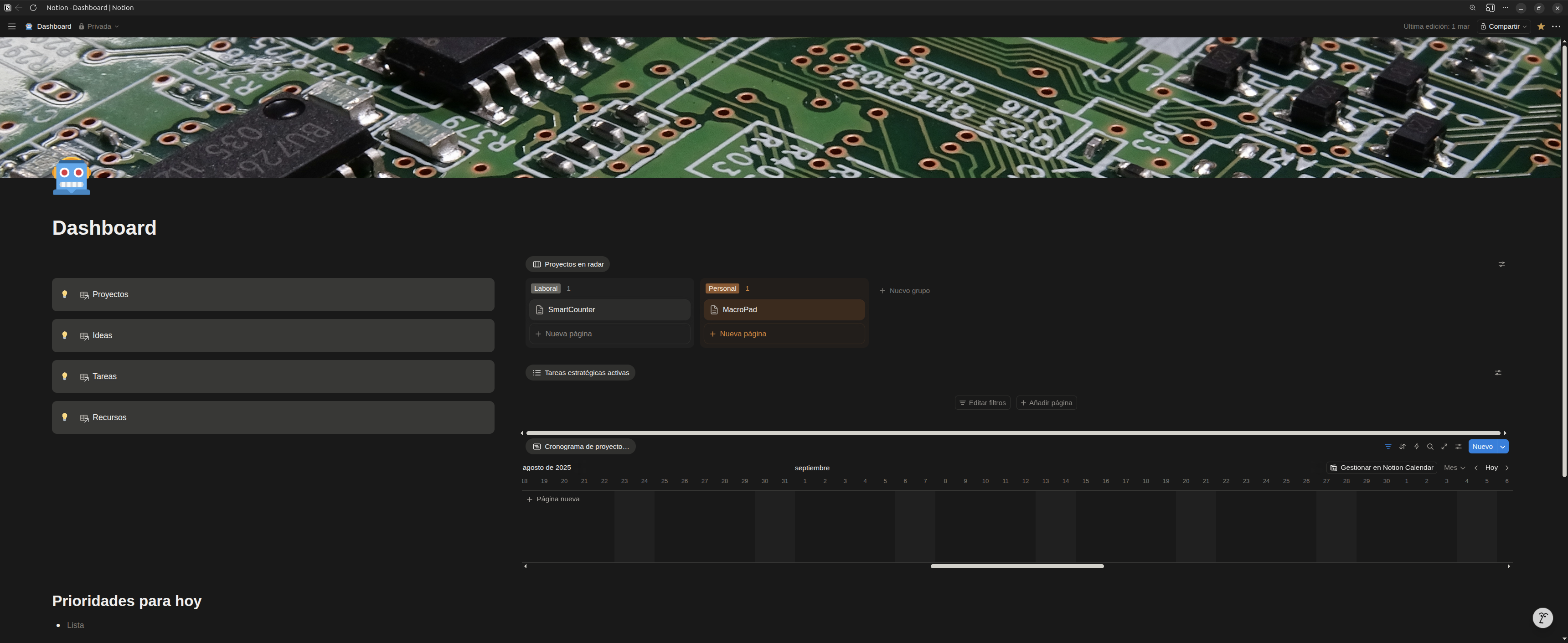
The layout uses two asymmetric columns. The left column gives quick access to the main databases, and the right column shows active project tracking — both work projects and personal ones. At the very bottom, there’s a prioritized list of tasks for today.
Within that right column, below the active project overview, there’s a filtered view showing all tasks marked as “for today” that aren’t yet completed.
Databases
When describing database properties, I’ll skip the “name” field — it’s always there.
Projects
Each project gets its own page, with a set of properties for categorization:
| Property | Options | Purpose |
|---|---|---|
| Type | work, personal | Which category the project belongs to |
| Status | active, on hold, blocked, completed, archived, wrapping up | Where the project currently stands |
| Phase | concept, design, development, integration, testing, closure | Which phase of the project we’re in |
| Priority | high, medium, low | Project priority |
| On dashboard | Yes/No | Whether this project appears in the top section of the right column on the dashboard |
| Dates | Start/End | Project start and end dates |
| Origin idea | Idea | Links to the Ideas database — if this project came from an idea, it shows here |
| Resources | Resources | Links to the Resources database — any assigned resources appear here |
| Tasks | Related tasks | Links to the Tasks database — any tasks associated with this project appear here |
Page content
At the top of each project page, there’s a filtered view of associated tasks pulled from the Tasks database — showing only tasks linked to that project that aren’t marked as done.
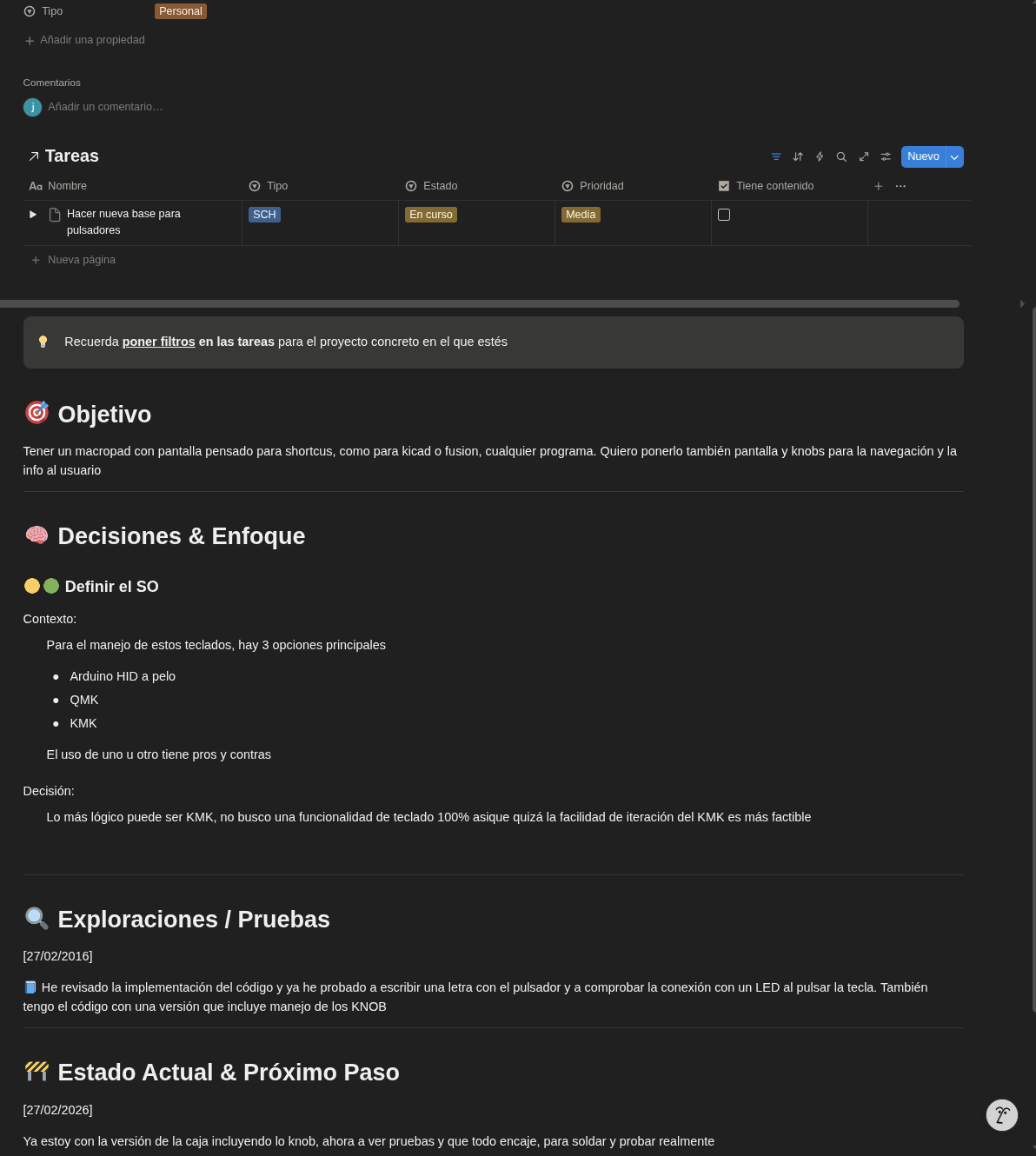
Below that is the actual project content, structured as a loose script: the objective, key decisions (like choosing a technology or approach), experiments and explorations, and a running summary of where things stand on any given day.
Ideas
This database is for capturing ideas before they get forgotten — whether they’re fully fleshed out or just a rough thought. I like using Notion’s transcription feature here: I’ll just talk, letting whatever’s in my head come out, and then let Notion turn it into a structured entry.
It’s like a brainstorming session with a personal assistant taking notes.
| Property | Options | Purpose |
|---|---|---|
| Type | hardware, software, 3D, mixed | What kind of project this idea would lead to |
| Interest | a number from 0 to 10 | How excited I am about it |
| Status | idea, exploring, converted, discarded | Where the idea stands — “converted” is tied to the button below |
| Projects | projects | Links to a project if one exists |
| Button | Action | Creates a new entry in the Projects database from this idea |
The content itself is just plain text — raw thoughts or transcriptions. The whole point of this database is for ideas to eventually become projects.
Tasks
This database holds all tasks across all projects, with the following properties:
| Property | Options | Purpose |
|---|---|---|
| Project | project | Which project this task belongs to |
| Status | pending, in progress, done | Current state of the task — very useful for filtering in other views |
| Priority | low, medium, high | Task priority — again, great for filtering |
| For today | yes/no | Whether this task should appear in the dashboard’s “today” view |
| Type | test, bug, development, optimization, schematic, layout, logistics | What kind of task it is — hardware, software, and everything in between |
| Has content | yes/no | Just a flag to know whether the task entry has its own notes — useful when tasks appear in multiple views and you want to know if there’s something worth opening |
Like Ideas, task content is plain text — no templates, no structure imposed.
Resources
A place to store anything reusable across projects that’s worth tracking: screws, components, libraries, datasheets, and so on.
| Property | Options | Purpose |
|---|---|---|
| Type | datasheet, component, library, tool, reference, screw, application note | What kind of resource it is |
| Area | hardware, software, 3D, mechanical | Which domain it belongs to |
| Projects | projects | Which projects use this resource |
| Notes | notes | Free-form info — what it contains depends entirely on the resource itself |
Content here varies a lot depending on the resource. You might embed a PDF datasheet, add purchase links, paste specs — whatever’s useful. Because of that flexibility, there are no fixed templates.
Obsidian
Obsidian is my second brain. This is where I store everything I want to keep and be able to find later: notes from courses, research, personal investigations, project deep-dives. Anything I learn that I don’t want to have to re-learn.
I organize everything in a folder structure — I don’t like having things scattered at the root level.
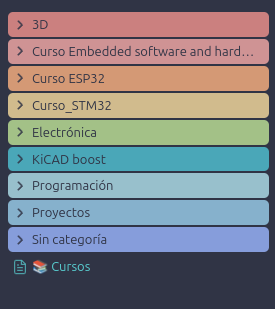
The main branches are:
- Courses — each course has its own internal structure. Some notes are pure summaries, others include code examples broken down and explained. It varies depending on the course and the kind of notes I wanted to take.
- Electronics — theory, typical schematics, routing strategies, and so on. Content comes from courses, books, and websites.
- Programming — general programming and OS concepts, not tied to any specific course or platform. Think of it as a general reference.
- Extras — everything else that doesn’t fit neatly above.
What ties all of this together — and a big reason I love Obsidian — is the ability to search by tags and by content.
Search by content
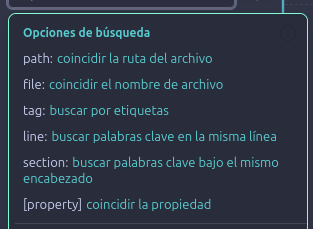
Nothing revolutionary here: just searching for words or phrases across all your files. But Obsidian’s search is genuinely fast and powerful.
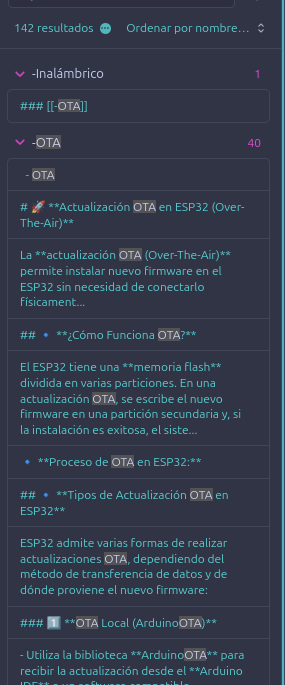
For example, searching for OTA across all notes:
Search by tag
This one’s great — there’s a dedicated tag browser in the right sidebar.
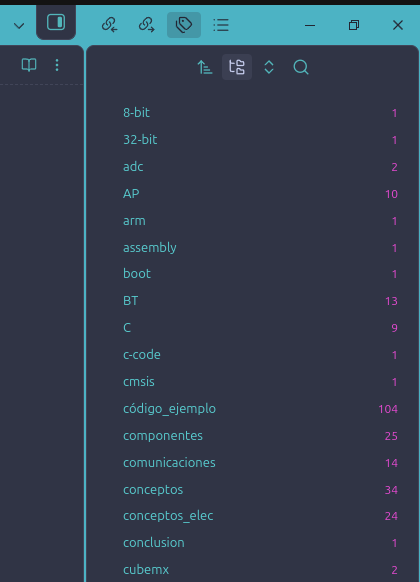
A good tagging system on your notes is what lets you build soft connections between knowledge, rather than relying entirely on hard links between pages. It’s a more flexible way to navigate ideas that span multiple topics.
Putting it all together
In graph view, you can see how notes cluster:
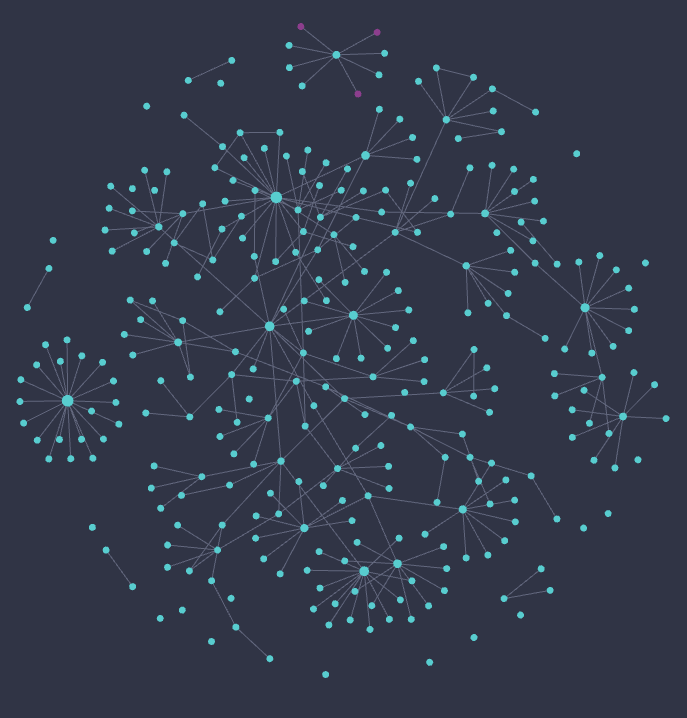
The large central nodes are category index pages. Here’s a simple example — a filament guide index:
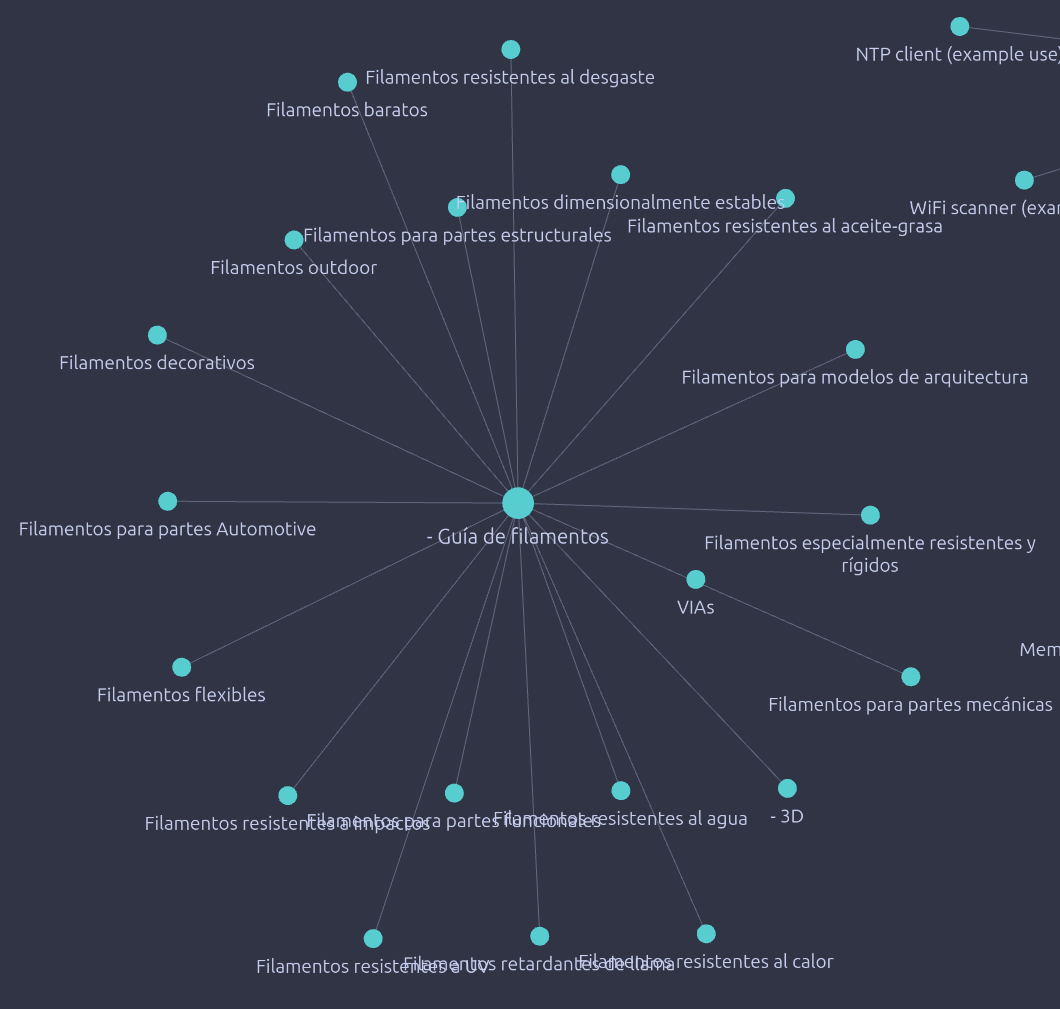
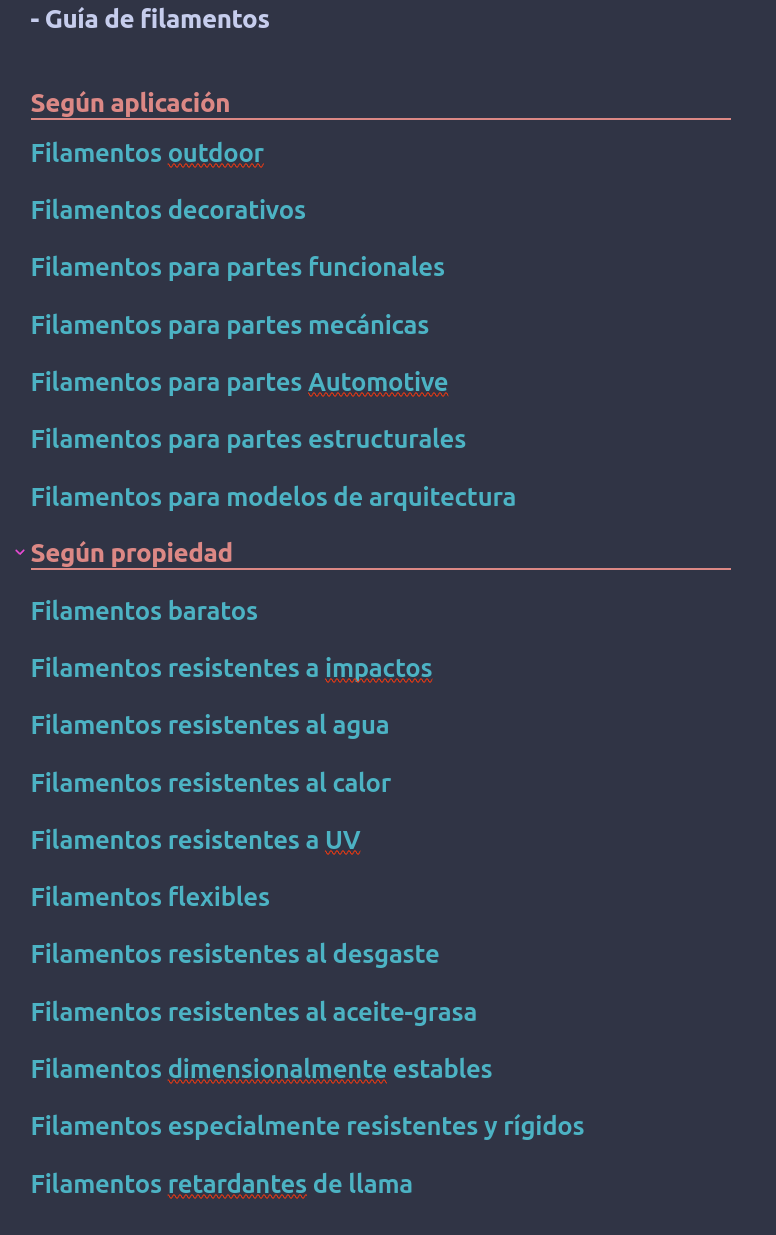
That index philosophy scales well to courses and larger topic areas. For example, in Curso_ESP32:
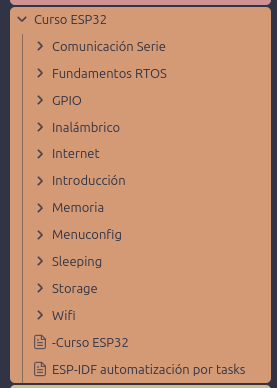
There’s a top-level index node, and then sub-groups for each subtopic — each with its own index. This makes it easy to navigate by structure, by tag, or by search, depending on what you’re looking for.
Conclusion
Using these two tools for different things means you always know where to look. If I want raw knowledge stored like a personal encyclopedia, I go to Obsidian — which I also keep in a private GitHub repo for version control. If I want to track what I’m working on, what I need to do, and where a project stands, I go to Notion.
Notion takes more work to set up initially, but once it’s configured to fit your workflow, it does exactly what you need: keeps your day-to-day on track and your projects documented well enough to pick up again months later — without feeling like you’re starting from scratch.